
How to configure Workflow in Novu
Configure workflow metadata, delivery preferences, and payload schema in the workflow editor.
After creating a workflow, you are redirected to the workflow editor, where you configure workflow-level settings. You can also open any existing workflow from the Workflows page to access the editor.
In the Configure workflow section, you can update workflow metadata, control delivery behavior, and define the workflow payload schema.
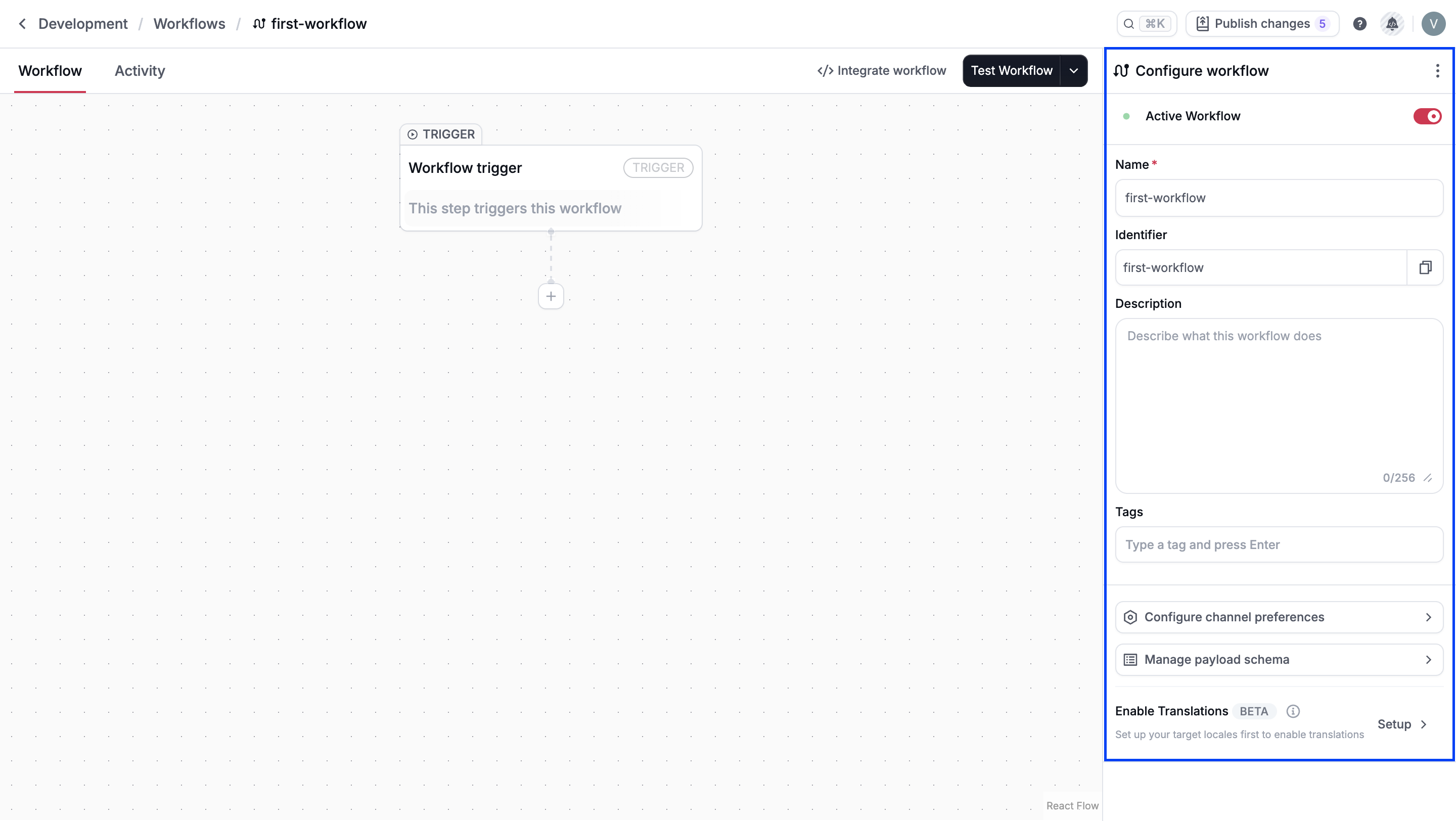
Workflow status
A workflow is active by default after creation. Disabling a workflow pauses execution and prevents triggers from running.
Workflows can exist in one of three states:
- Active: This means the workflow can be triggered.
- Inactive: This means the workflow is paused. It cannot be triggered, but you can still edit its structure or steps.
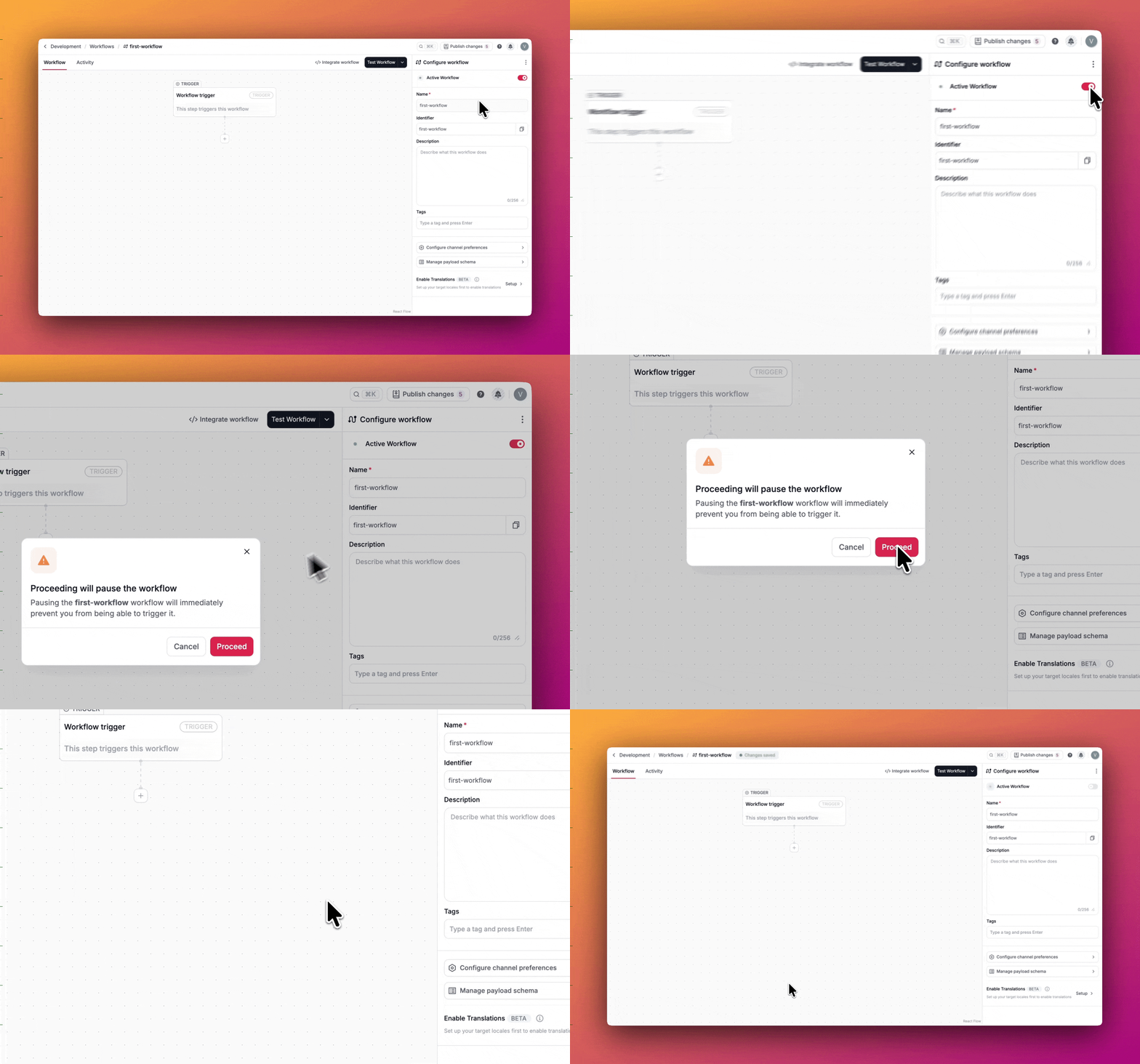
- Action required: This means the workflow contains one or more errors, such as missing required fields or unconnected channels. It can still be triggered.
Tags
Tags are labels or categories that help you organize and manage workflows. By grouping workflows under specific tags, you better control how they're filtered, displayed, and managed.
Tags help keep things tidy and manageable for both you and your team and you can add up to 16 tags per workflow.
Tags can be used to:
- Conditionally display notifications in the <Inbox /> or filter workflows in <Subscription />.
- Filter and search for workflows in the dashboard.
- Retrieve or list workflows via the Novu API.
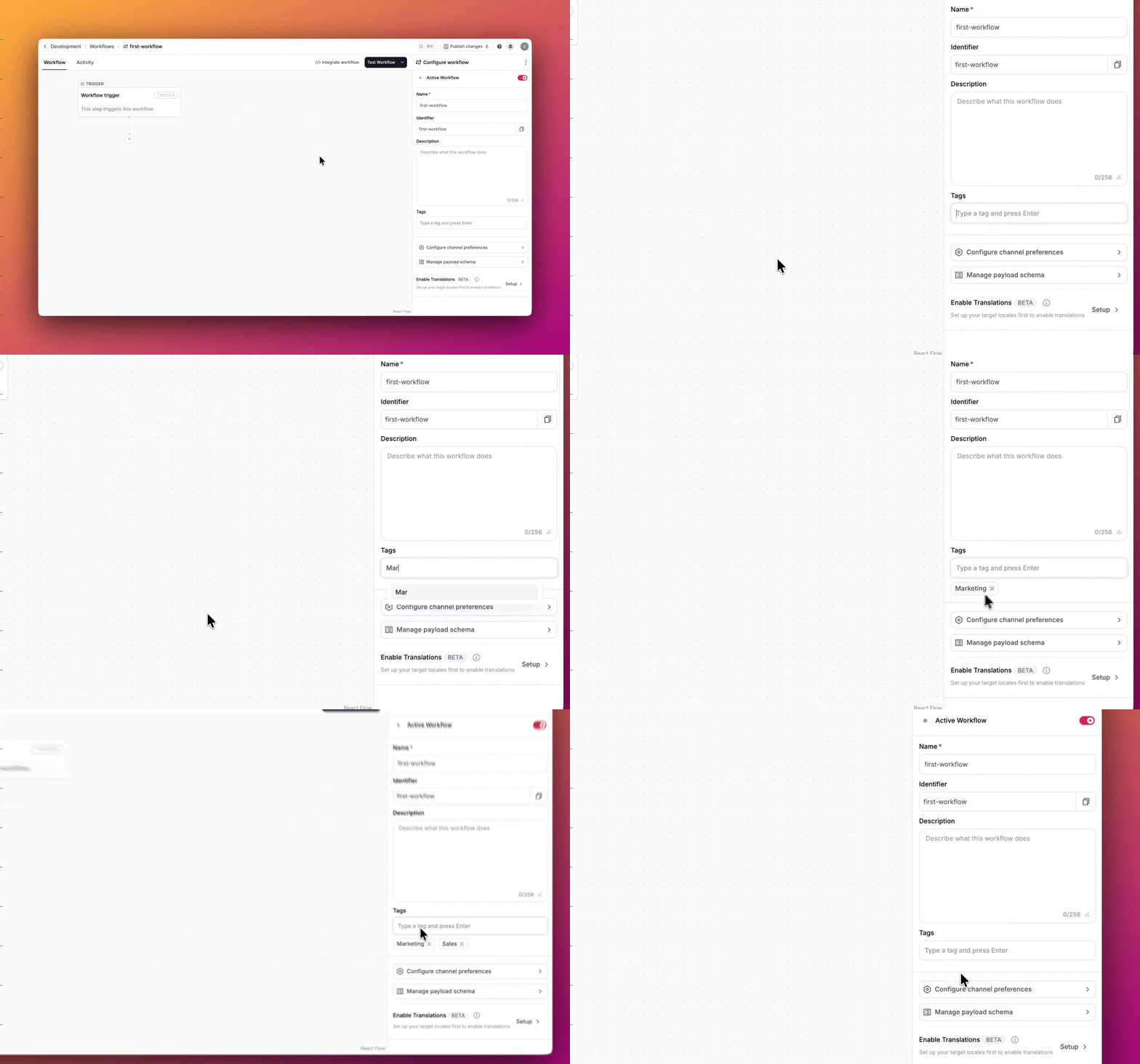
Add a workflow tag
- In the workflow editor, find the Tags field.
- Type tag name, If tag already exists, it will be suggested.
- If tag does not exist, you can create it by pressing Enter.
Remove a workflow tag
- Click the X icon next to the tag name to remove tag from the workflow.
Channel preferences
Workflow channel preferences let you set default channel preferences for subscribers. For all new subscribers, the channel preferences will be set to the default preferences set for the workflow. Read more about channel preferences.
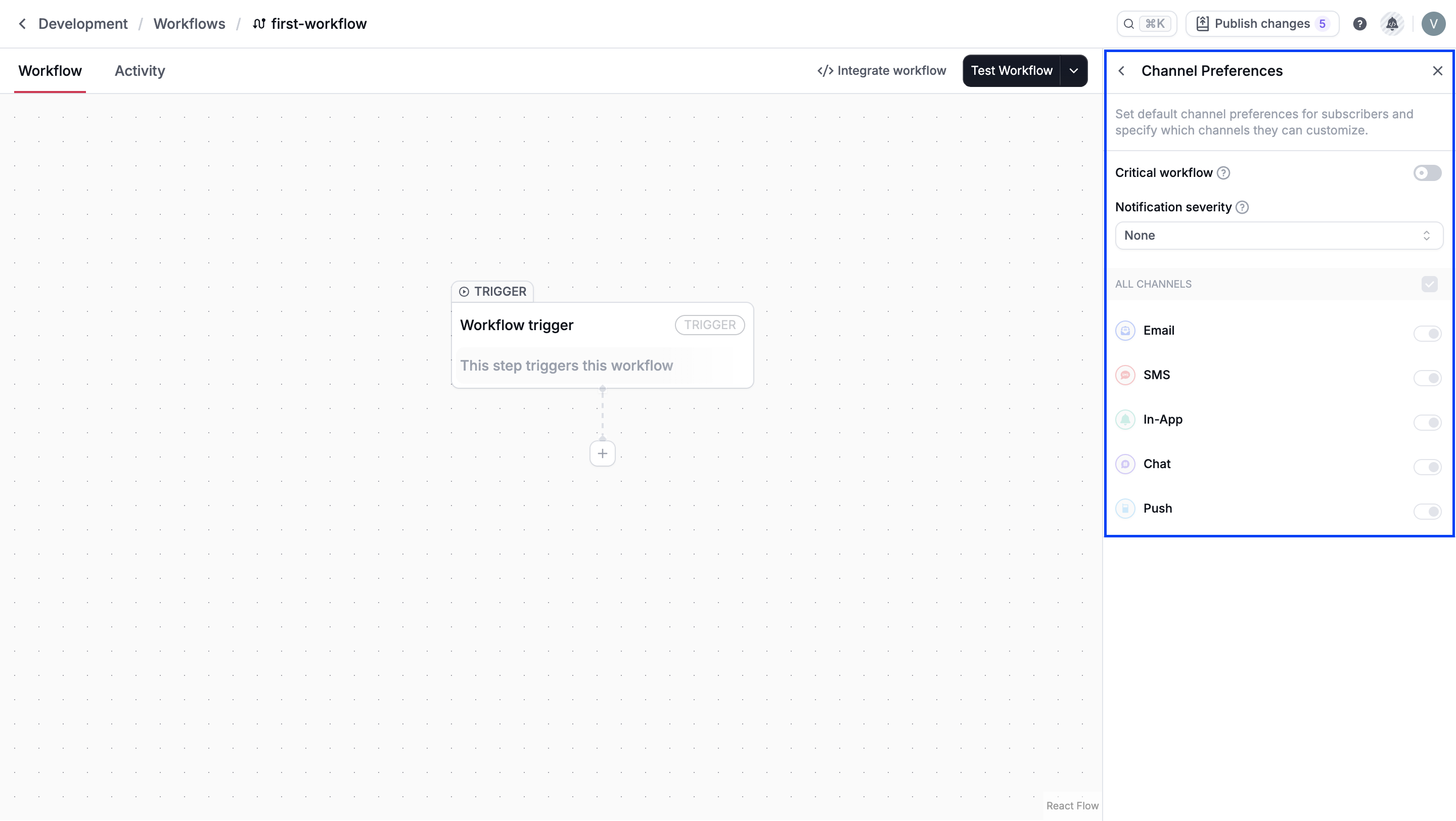
Critical workflows
Novu allows you to mark a workflow as critical, this means that the notification sent from that workflow must always be delivered to the subscribers regardless of their personal preferences and they cannot change their preferences for this workflow.
This is useful for high-priority notifications that are related to security, financial, or access-related information, where missing a message could have some consequences.
Notification severity
Notification severity lets you classify workflows by importance, helping subscribers quickly identify urgent notifications. Each workflow can be assigned one of four severity levels:
- High: Critical notifications that require immediate attention
- Medium: Important notifications that are not critical
- Low: General or informational notifications
- None: The default level for all new and existing workflows
You can set the severity for a workflow in the Novu dashboard by selecting a value from the Notification severity list.

Severity levels affect how notifications appear in the Novu <Inbox />. By default, severity controls visual cues such as color, icons, and the bell indicator, helping users prioritize messages at a glance:
- High: Red hue
- Medium: Orange hue
- Low: No color
- None: Default styling
These default styles are customizable.
Payload schema
The Payload schema defines, manages, and validates the structure of data sent to a workflow. By defining a schema, you ensure that payload object, while triggering the workflow, is predictable, type-safe, and consistent across environments.
The schema acts as a contract between your systems and Novu, defining which variables exist, how they are structured, and what validation rules apply. This gives your team a shared, explicit source of truth for workflow data.
You can reference payload schema fields in the template editor, action step configuration, and step conditions to insert dynamic content and build data-driven logic. Payload schemas are especially useful for complex workflows that rely on reusable components, dynamic payloads, or strict validation requirements
Benefits of defining a payload schema
With a defined schema in place, you can:
- Prevent unexpected runtime errors caused by invalid or missing data.
- Build reliable conditional logic using type-aware operators.
- Generate accurate previews powered by intelligent mock data.
- Enable autocomplete suggestions when referencing payload variables.
Schema properties
Each schema property includes the following fields:
- Property name: Must start with a letter or underscore, and contain only letters, numbers, underscores, or hyphens.
- Property type: You can either select a string, integer, number, boolean, enum, array, object, or null.
- Required: You can mark a property as required. Required properties must be included in the payload when triggering the workflow using
novu.trigger()method. - Schema configuration: Additional validation and type-specific settings.
- Delete: Remove the property from the schema.
Define workflow schema
Each property you define becomes part of the payload schema, and helps Novu suggest accurate variables when configuring channel steps or digest actions. You can define the expected payload schema in three ways:
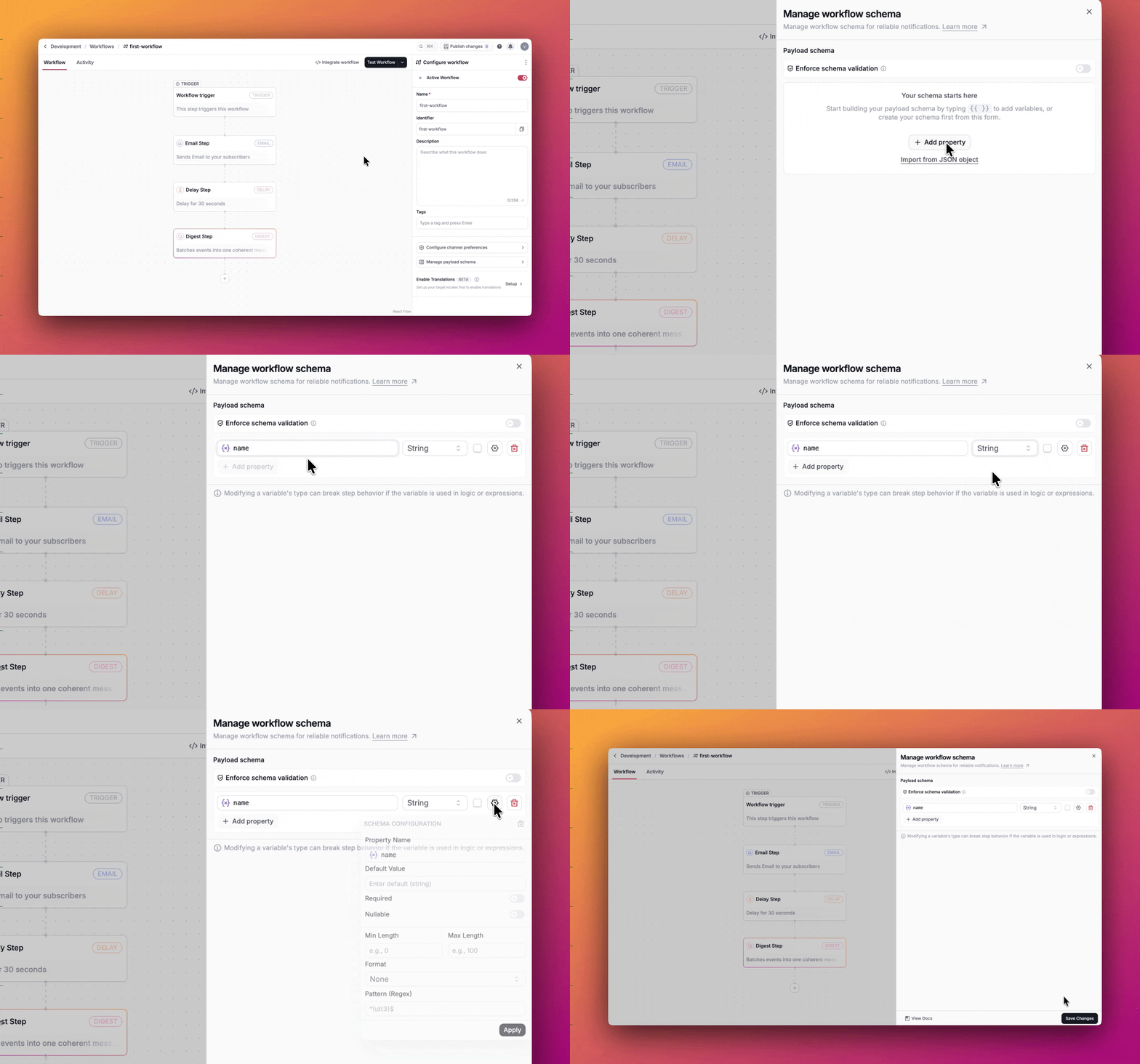
Manually
Manually define each property by specifying its name, type, and validation rules from the Manage workflow schema section.
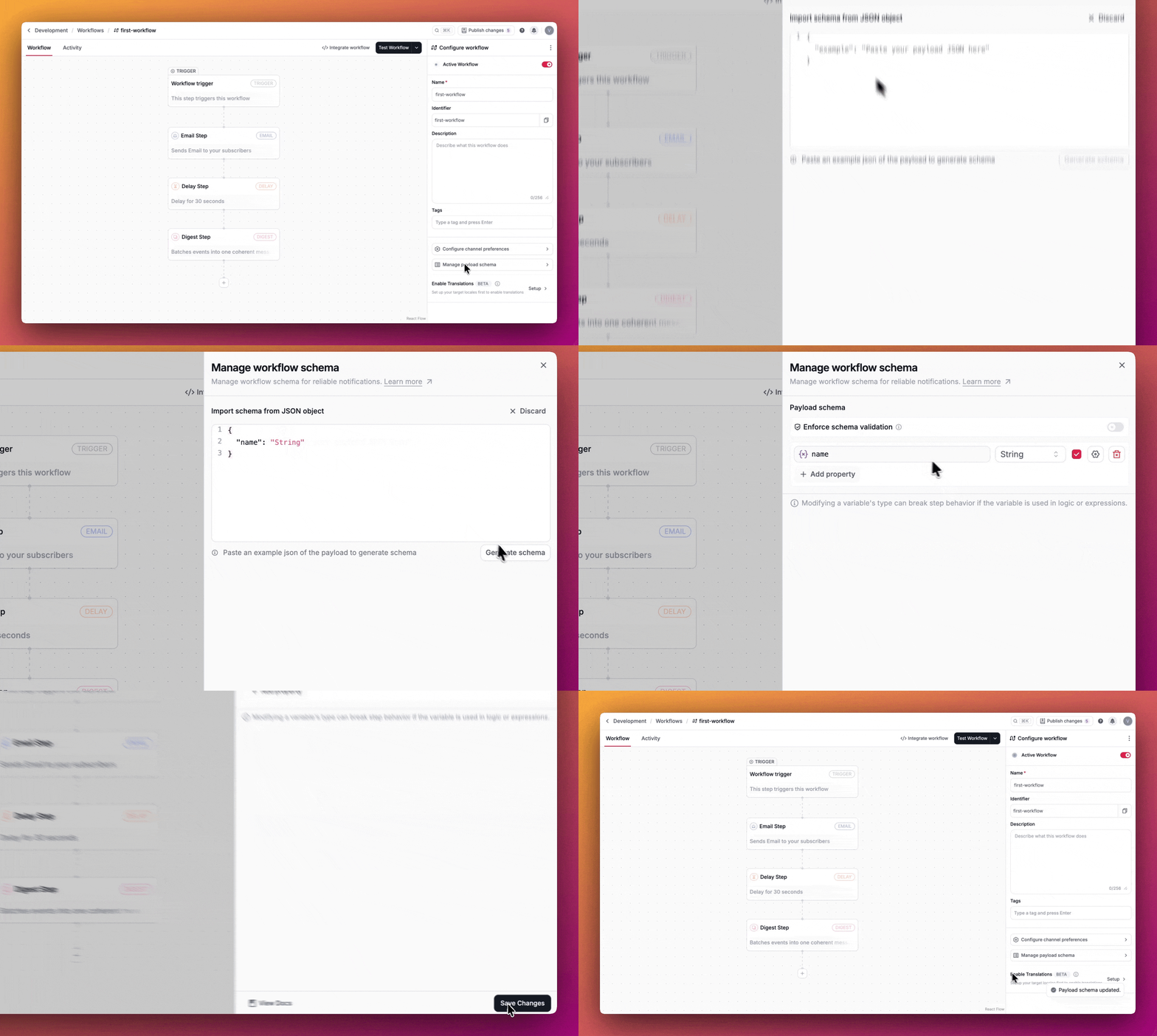
Import from JSON
If you already have a sample payload, you can import it as a JSON object from the Manage workflow schema section. Novu automatically infers property names, types, and nested structures.
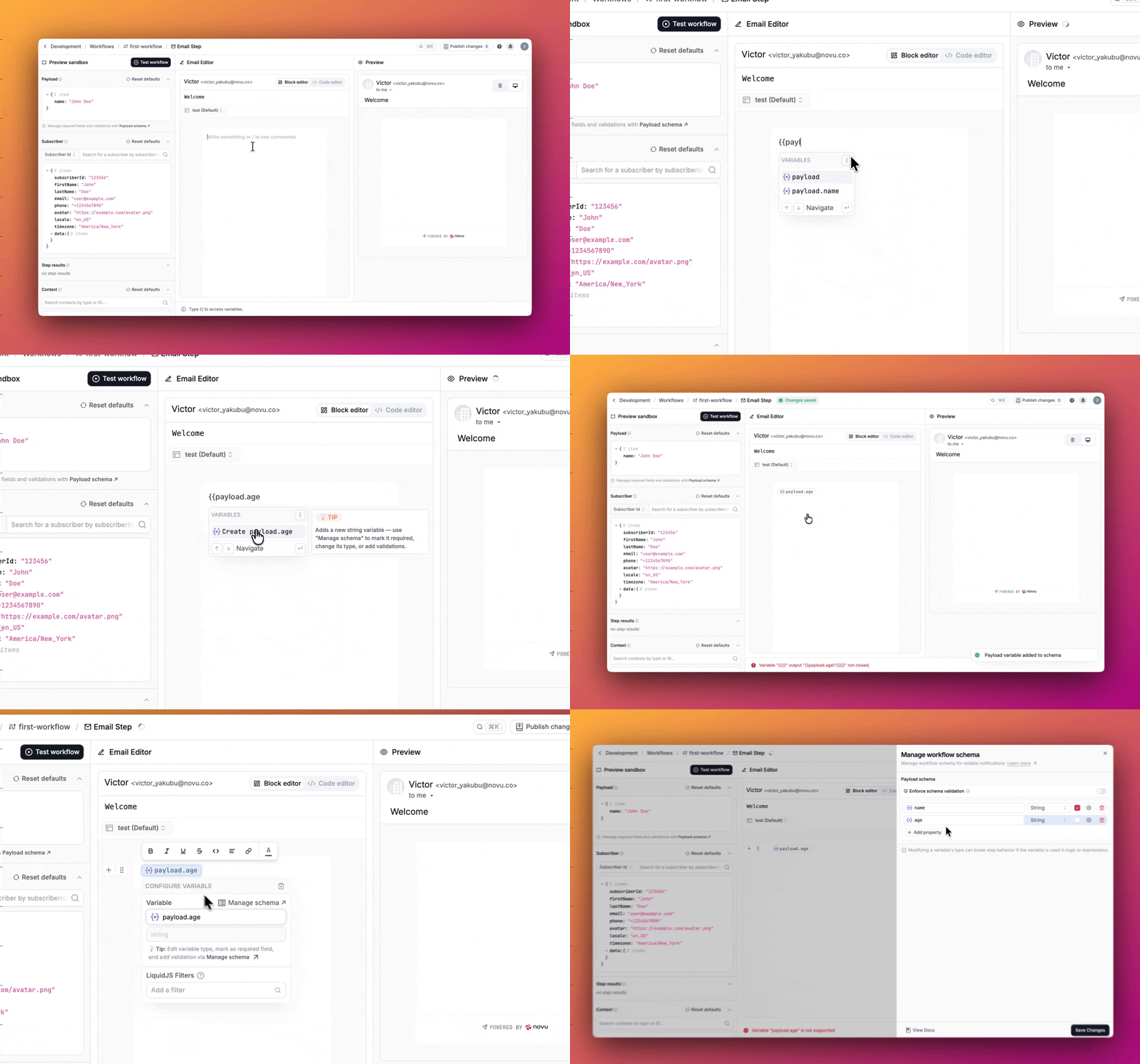
Create an inline variable
While adding notification content in the template editors, you can reference a variable that doesn’t exist in the schema (for example, payload.title). Novu will prompt you to create the variable inline and add it to your schema with a default type of String.
After creating the variable, you can edit it from the Manage payload schema directly in the template editor.
Schema configuration
When defining a schema property, the available configuration fields vary depending on the selected property type.
General fields (for all types)
- Property name
- Property type
- Required property checkbox
- Default value (Fallback value if none is provided).
- Min length and max length
Type-specific configuration
Additional options appear depending on the selected type:
- String:
- Format: None, date-time, date, time, duration, email, hostname, ipv4, ipv6, uuid, uri-reference, uri-template, json-pointer, relative-json-pointer, regex
- Pattern: Regex-based validation
- Enum: Add choices, which are a list of predefined, allowed values. This restricts the field to only those values.
- Array: Select the Array item type, which defines the data type of each array element.
- Object: Add nested properties, each with their own type, required status, and validation options.
Enforce schema validation
Schema validation is enabled per workflow. When enabled, Novu validates incoming payloads against the schema when the workflow is triggered.
This means:
- Missing required properties will cause the request to fail.
- Data types must match exactly. For example, a string cannot be passed where a number is expected.
- Invalid values are rejected before the workflow executes.
Validation occurs at the HTTP trigger level and prevents invalid data being used in the workflow execution.