
Step Conditions
Create dynamic notification workflows using rule-based conditions. Control message delivery based on subscriber, payload, and workflow data.
Step conditions let you control whether a workflow step runs or is skipped. They allow you to build adaptive notification flows that respond to subscriber attributes, payload schema data, and outcomes from previous steps.
Conditions are configured per step and apply to both channel steps and action steps.
Add step conditions
You configure step conditions from the Workflow Editor.
- Select a step in the Workflow Editor.
- In the Configure step panel, click Step Conditions.

- Proceed to add your step conditions.
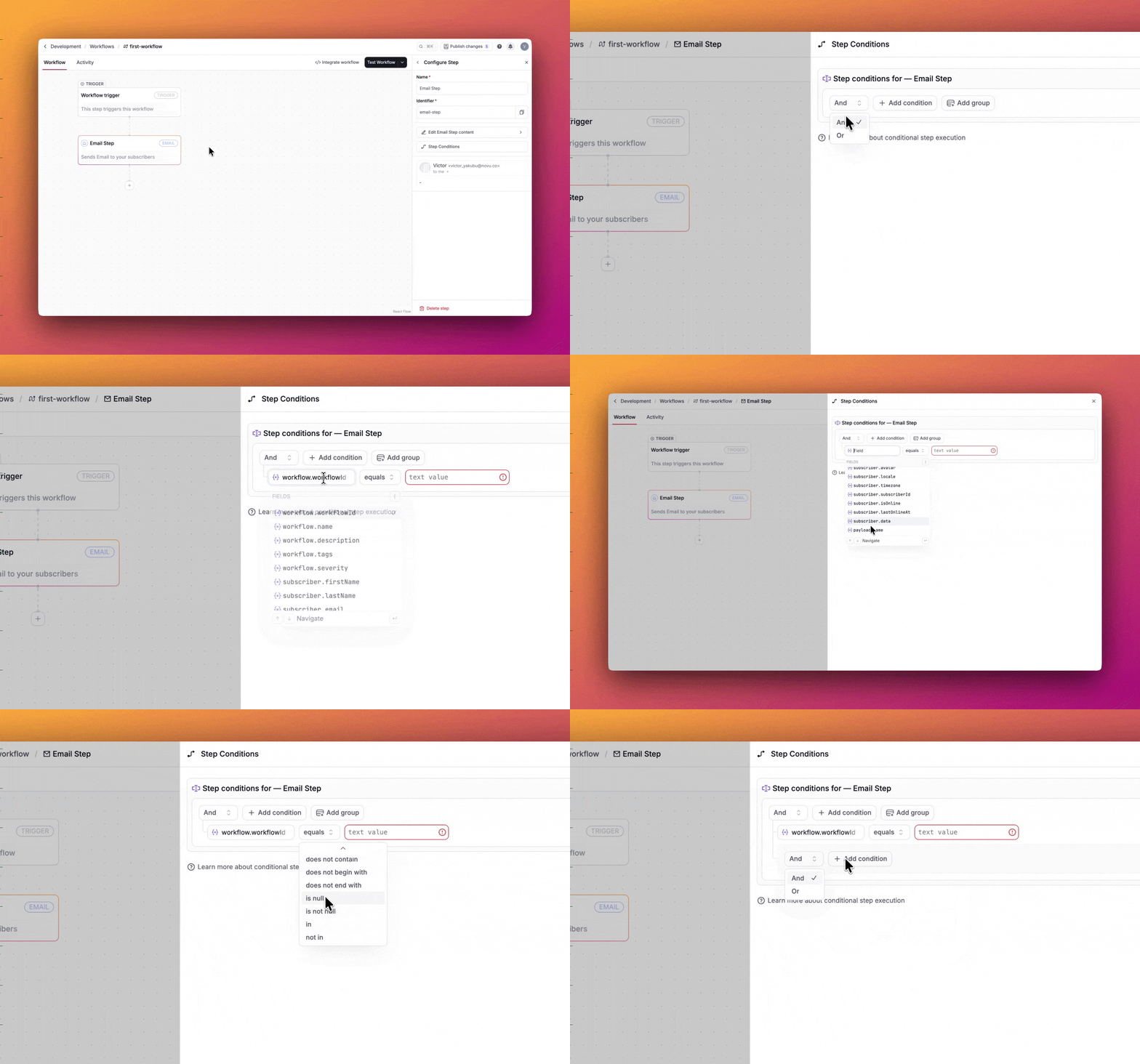
If the condition evaluates to true, the step runs. If it evaluates to false, the step is skipped and the workflow continues.
How the condition builder works
The step condition builder is rule-based and composed of three core elements:
- Logical operators: Choose AND or OR to define how conditions are evaluated.
- Conditions: Individual rules that compare a field, an operator, and a value.
- Condition groups: Nested groups that allow more complex logic.
In the UI, you’ll see:
- AND / OR selector buttons
- + Add condition to add a rule
- Add group to create nested condition groups
This structure allows you to model both simple checks and complex branching logic.
Supported operators
The condition builder supports a wide range of comparison operators:
| Operator | Description | Example |
|---|---|---|
= | Equal to | subscriber.locale = "en-US" |
!= | Not equal to | subscriber.isOnline != true |
< | Less than | payload.totalAmount < 100 |
> | Greater than | payload.totalAmount > 100 |
<= | Less than or equal to | payload.totalAmount <= 200 |
>= | Greater than or equal to | payload.totalAmount >= 200 |
contains | Contains a substring | payload.orderId contains "123" |
begins with | Starts with | subscriber.firstName begins with "J" |
ends with | Ends with | subscriber.email ends with "@xyz.com" |
does not contain | Does not contain a substring | payload.orderId does not contain "456" |
does not begin with | Does not start with | subscriber.firstName does not begin with "M" |
does not end with | Does not end with | subscriber.lastName does not end with "Smith" |
is null | Is null | subscriber.phone is null |
is not null | Is not null | subscriber.email is not null |
in | Matches one of several values | subscriber.locale in ["en-US", "es-ES"] |
not in | Does not match any of the listed values | subscriber.locale not in ["fr-FR", "de-DE"] |
between | Within a range | payload.totalAmount between [50, 200] |
not between | Outside of a range | payload.totalAmount not between [0, 50] |
Data used for step conditions
Step conditions can evaluate data from several sources. Choose the source that best represents the decision you’re trying to make.
Subscriber data
You can apply conditions on subscriber attributes so notifications only go to the right people. For example, send an SMS only when subscriber.isOnline is false (isOnline is a subscriber attribute that comes from whether the subscriber has an active Inbox session).
For custom fields you store on the subscriber (e.g. plan, preferences), use the full path to the property. For example, use subscriber.data.subscription_plan equals premium to run a step only for subscribers on the premium plan.
Payload data
You can use data from the payload schema or custom payload data passed during the workflow trigger call to the Novu API to configure step conditions. This allows you to define dynamic rules based on the data unique to each workflow execution.
Example payload data:
You can configure conditions such as:
payload.orderStatus = "completed"payload.totalAmount > 100
Workflow variables
You can base conditions on workflow variables. These variables provide metadata about the workflow being executed and allow you to add conditional logic.

The following workflow variables are available:
{{workflow.name}}: The name of the workflow.{{workflow.description}}: The description of the workflow.{{workflow.tags}}: An array of tags associated with the workflow.{{workflow.severity}}: The severity level (high, medium, low, none) of the workflow.{{workflow.workflowId}}: The unique identifier of the workflow.
Previous step result
For workflows involving sequential steps, conditions can also depend on the outcome of a previous step. For example, if the prior step was an in-app notification, then the condition could check:
steps.in-app-step.seensteps.in-app-step.readsteps.in-app-step.lastSeenDatesteps.in-app-step.lastReadDate
This can be used for follow-up notifications. For instance, send an email only if the in-app notification was not read within 24 hours.
Context
You can use context variables in the Step conditions tab of a workflow step to add conditional logic to your notifications.
Dynamic data fields
The value field in a condition can also be a dynamic data field. This allows you to compare two data points dynamically rather than using static values.
For example:
In this case, the step will execute only if payload.foo is equal to payload.bar at runtime. This enables flexible condition logic based on real-time data comparisons.