
How to configure Digest Step
Batch multiple workflow trigger events into a single execution using configurable digest windows and grouping rules.
After adding a Digest step to a workflow, Novu batches multiple trigger events and executes downstream steps only once per digest window, instead of once per event.
This page focuses on how to configure the Digest step to fit your use case.
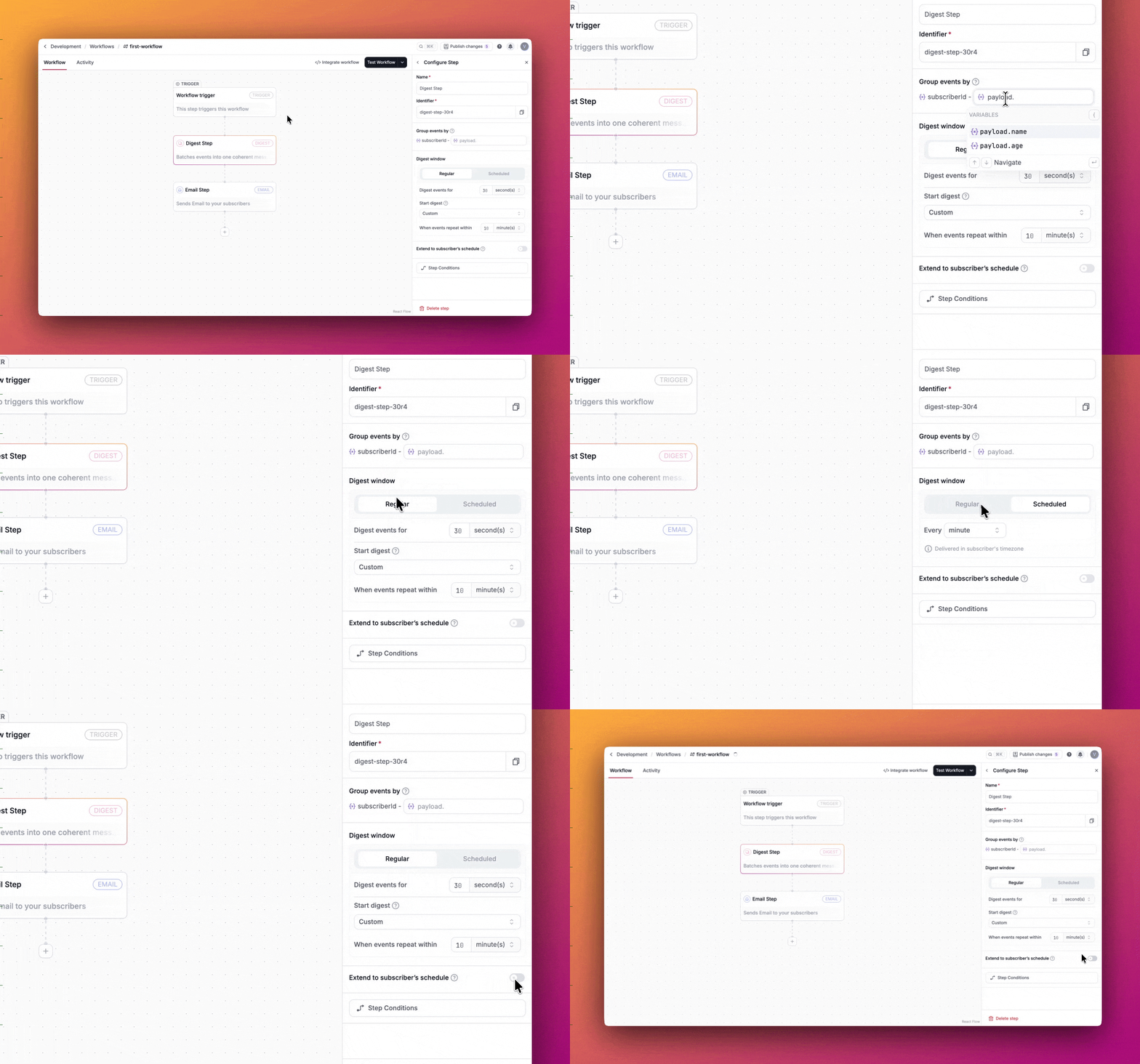
Group events by
By default, Digest groups events by subscriberId, ensuring that each subscriber receives their own digest.
You can optionally add one additional aggregation key to further group events within a subscriber’s digest. This gives you finer control over how events are batched.
The aggregation key must come from the event payload defined in your payload schema. For example, if multiple users like different posts, you may want each subscriber to receive separate digests per post by grouping on payload.postId.
Digest window
The Digest window defines how long events are collected before the workflow continues. You can configure the digest window as Regular or Scheduled.
Regular digest
This allows you to set the amount of time to digest events for. Once the defined time has elapsed, the digested events are sent.
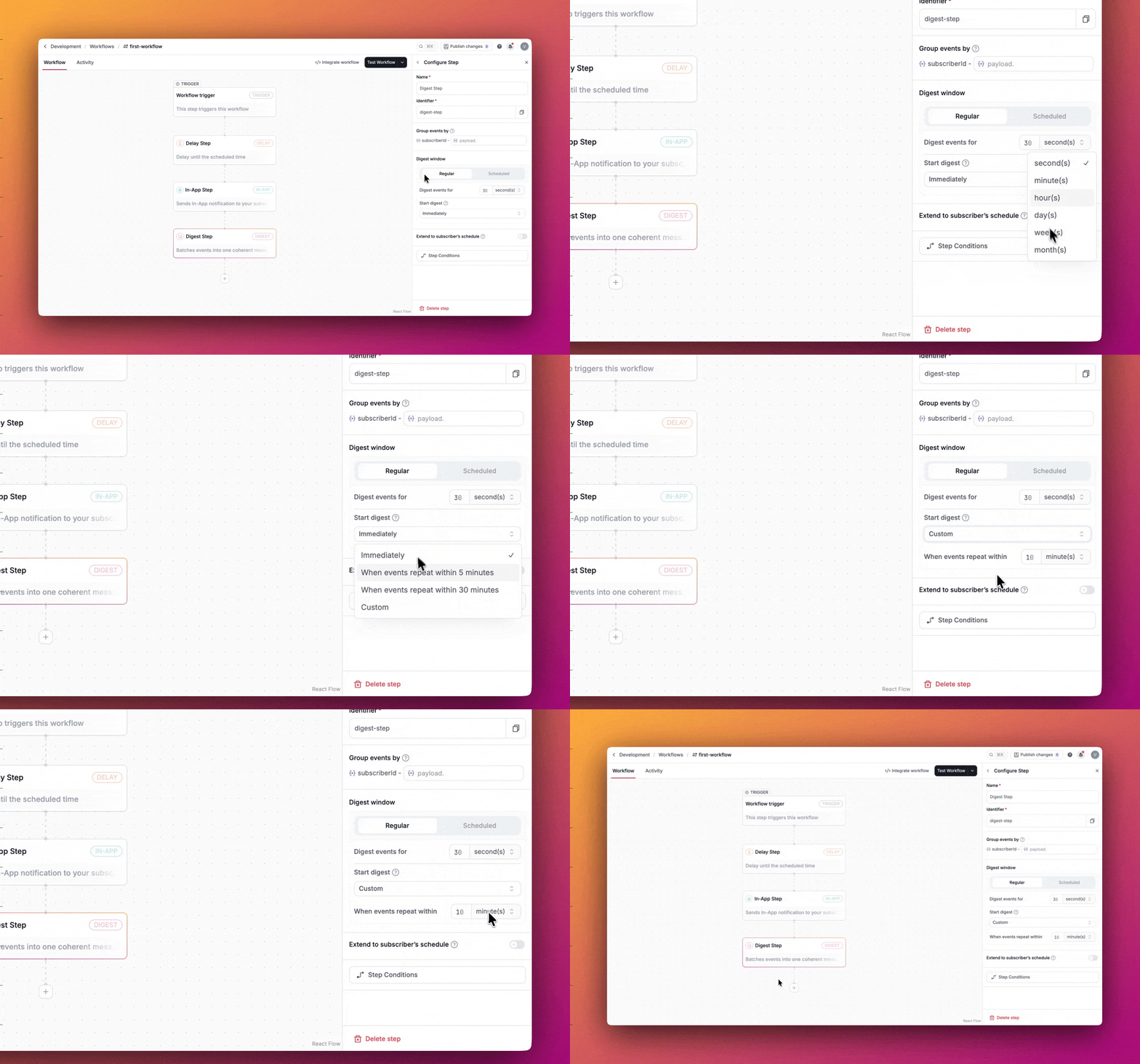
Control digest duration
You can configure the digest duration from the Digest events for field:
- Seconds
- Minutes
- Hours
- Days
- Weeks
- Months
Control when to start digest
You can also control when digesting begins by selecting any of the following options from the Start digest field:
-
Immediately: Start collecting events as soon as the first event arrives.
-
When events repeat: Check whether a similar notification was sent recently.
- If yes, start a digest.
- If not, deliver the notification immediately and skip digesting.
Available presets:
- When events repeat within 5 minutes.
- When events repeat within 30 minutes.
- Custom.
This behavior is useful when you want the first notification delivered instantly, while batching subsequent events that occur close together.
Scheduled digest
A scheduled digest collects events and delivers them at fixed calendar intervals instead of relative durations.
You can schedule delivery:
- Every minute
- Every hour
- Daily
- Weekly
- Monthly
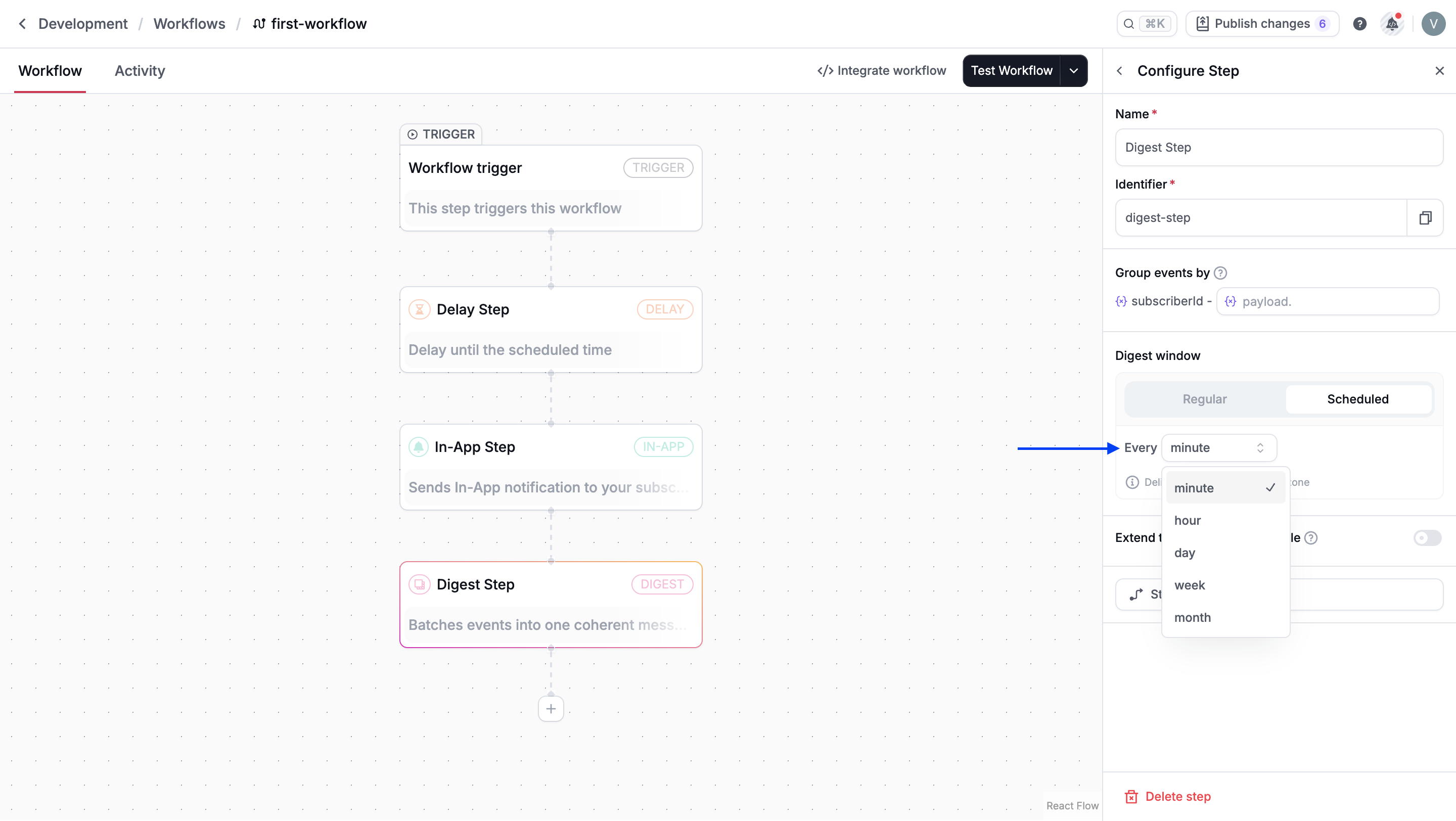
Scheduled digests are delivered in the subscriber’s time zone.
Extend to subscriber’s schedule
When enabled, digest delivery respects the subscriber’s delivery schedule.
If the digest window ends outside the subscriber’s available hours, the notification is delayed until the next available time slot. This option is disabled by default.